Building a chat app
Keyboard handling in chat applications has always been one of the trickiest problems in mobile development — even on native platforms. Chat apps push keyboard interactions to their limits: interactive dismissal, content repositioning, smooth transitions between the keyboard and custom input views, and all of it at 120 FPS. Getting this right requires deep integration between the keyboard, scroll views, and layout systems — far more than a general-purpose component can offer.
Why general-purpose components fall short
You might be tempted to reach for KeyboardAvoidingView or KeyboardAwareScrollView to handle keyboard interactions in a chat app. While these components work well for forms, settings screens, and other straightforward layouts, they weren't designed for the unique demands of a chat interface.
Here's what you'll run into:
- Frame drops with complex layouts —
KeyboardAvoidingViewwithbehavior="padding"orbehavior="height"can cause frame drops, particularly when the layout is complex. - First-message rendering issues — using
behavior="translate-with-padding"makes it impossible to render the first message at the top of the screen. - Double scroll on interactive dismissal — combining
KeyboardAvoidingViewwith interactive keyboard dismissal on iOS leads to a double-scroll problem. - Unnecessary animation — when you are at the beginning of the list and keyboard closes,
KeyboardAvoidingViewstill animates the content even though no scrolling adjustment is needed.
These aren't edge cases — they're fundamental mismatches between what generic components were designed to do and what chat apps actually need. You can work around them, but you'll end up writing a lot of platform-specific code to get a polished result.
What chat apps actually need
Despite the complexity, most chat apps share the same set of keyboard-related requirements:
- Content repositioning — push messages up when the keyboard appears (with the option to disable this in certain cases).
- Interactive dismissal — let users swipe the keyboard away with a drag gesture.
- Content freezing — hold the chat in place when switching from the keyboard to a custom input view like an emoji picker or bottom sheet.
- Virtualized list support — work seamlessly with
FlatList,FlashList,LegendList, and other virtualized list implementations. - Smooth animations — maintain 60/120 FPS during keyboard transitions, even on low-end devices.
- Keyboard padding — extend the scrollable area to account for keyboard height.
- Custom offsets — support layouts where the chat isn't flush against the bottom of the screen.
Implementing all of this from scratch is a significant undertaking. That's why we built KeyboardChatScrollView — a dedicated component that handles all of these behaviors out of the box, so you can focus on building your chat experience rather than fighting the keyboard.
What is KeyboardChatScrollView?
KeyboardChatScrollView is a purpose-built component for chat app layouts. It provides all the requirements listed above — content repositioning, interactive dismissal, content freezing, virtualized list support, smooth animations, keyboard padding, and custom offsets — with zero configuration needed for the common case.
Step-by-step integration
This section walks through building a chat screen from scratch using KeyboardChatScrollView. We'll start with the simplest possible setup and progressively layer on features.
Basic setup with ScrollView
The simplest way to use KeyboardChatScrollView is as a drop-in replacement for ScrollView:
import { TextInput, View } from "react-native";
import {
  KeyboardChatScrollView,
  KeyboardStickyView,
} from "react-native-keyboard-controller";

function ChatScreen() {
  return (
    <View style={{ flex: 1 }}>
      <KeyboardChatScrollView>
        {messages.map((msg) => (
          <Message key={msg.id} {...msg} />
        ))}
      </KeyboardChatScrollView>
      <KeyboardStickyView>
        <TextInput placeholder="Type a message..." />
      </KeyboardStickyView>
    </View>
  );
}
That's it — the keyboard will push messages up when it appears, and pull them back when it hides.
Adding interactive dismissal
To let users swipe the keyboard away with a drag gesture, wrap the chat area in a KeyboardGestureArea and set keyboardDismissMode="interactive" on the scroll view:
import { TextInput, View } from "react-native";
import {
  KeyboardChatScrollView,
  KeyboardGestureArea,
  KeyboardStickyView,
} from "react-native-keyboard-controller";

function ChatScreen() {
  return (
    <View style={{ flex: 1 }}>
      <KeyboardGestureArea
        interpolator="ios"
        style={{ flex: 1 }}
        textInputNativeID="chat-input"
      >
        <KeyboardChatScrollView
          keyboardDismissMode="interactive"
        >
          {messages.map((msg) => (
            <Message key={msg.id} {...msg} />
          ))}
        </KeyboardChatScrollView>
        <KeyboardStickyView>
          <TextInput nativeID="chat-input" placeholder="Type a message..." />
        </KeyboardStickyView>
      </KeyboardGestureArea>
    </View>
  );
}
Note the matching textInputNativeID on KeyboardGestureArea and nativeID on TextInput — this links the gesture area to the correct input.
Accounting for bottom safe area
If your chat sits above the bottom safe area (or a tab bar), set the offset prop so the component only pushes content by the effective distance (keyboardHeight - offset):
import { useSafeAreaInsets } from "react-native-safe-area-context";

function ChatScreen() {
  const { bottom } = useSafeAreaInsets();

  return (
    <KeyboardChatScrollView offset={bottom}>
      {/* ...messages... */}
    </KeyboardChatScrollView>
  );
}
Without this, the content would overshoot by the height of the safe area every time the keyboard appears.
Choosing a keyboardLiftBehavior
The keyboardLiftBehavior prop controls how messages react when the keyboard opens. Different chat apps use different strategies — pick the one that fits your product:
| Value | Behavior | Used by |
|---|---|---|
"always" (default) | Content always lifts with the keyboard | Telegram, WhatsApp |
"whenAtEnd" | Content lifts only if the user is scrolled to the bottom | ChatGPT |
"persistent" | Content lifts when keyboard opens, but stays when it hides | Claude |
"never" | Content never moves; the keyboard overlaps the chat | Perplexity |
<KeyboardChatScrollView keyboardLiftBehavior="whenAtEnd">
  {/* ...messages... */}
</KeyboardChatScrollView>
Freezing content for custom input views
When transitioning from the keyboard to a custom input view (like an emoji picker), you don't want the chat to jump. Set freeze={true} to hold the scroll position in place during the transition:
const [showEmojiPicker, setShowEmojiPicker] = useState(false);
const [freeze, setFreeze] = useState(false);

const onEmojiPress = () => {
  setFreeze(true); // freeze before dismissing keyboard
  Keyboard.dismiss();
  setShowEmojiPicker(true);
};

const onKeyboardPress = () => {
  setFreeze(false);
  setShowEmojiPicker(false);
  textInputRef.current?.focus();
};

// ...

<KeyboardChatScrollView freeze={freeze}>
  {/* ...messages... */}
</KeyboardChatScrollView>;
When freeze is true, all keyboard-driven layout changes (padding, content offset, scroll position) are paused.
freeze also accepts a Reanimated SharedValue<boolean>. This is useful when you need to toggle freezing synchronously from a worklet — for example, inside a gesture handler:
import { useSharedValue } from "react-native-reanimated";
import { Gesture, GestureDetector } from "react-native-gesture-handler";

const freeze = useSharedValue(false);

const gesture = Gesture.Pan().onStart(() => {
  "worklet";
  // freeze synchronously on the UI thread before the keyboard starts dismissing
  freeze.value = true;
});

<KeyboardChatScrollView freeze={freeze}>
  {/* ...messages... */}
</KeyboardChatScrollView>;
Handling a growing multiline input
If your composer has a multiline TextInput that grows as the user types, you need to tell KeyboardChatScrollView about the extra space it takes up — otherwise the component doesn't know the scrollable range has changed and the bottom messages can get clipped under the input.
Pass a SharedValue<number> via the extraContentPadding prop. Update it in the TextInput's onLayout callback whenever the height changes:
import { useCallback } from "react";
import { TextInput, type LayoutChangeEvent } from "react-native";
import { useSharedValue, withTiming } from "react-native-reanimated";

const MIN_INPUT_HEIGHT = 36;

function ChatScreen() {
  const extraContentPadding = useSharedValue(0);

  const onInputLayout = useCallback(
    (e: LayoutChangeEvent) => {
      const height = e.nativeEvent.layout.height;

      extraContentPadding.value = withTiming(
        Math.max(height - MIN_INPUT_HEIGHT, 0),
        { duration: 250 },
      );
    },
    [extraContentPadding],
  );

  return (
    <>
      <KeyboardChatScrollView extraContentPadding={extraContentPadding}>
        {/* ...messages... */}
      </KeyboardChatScrollView>
      <KeyboardStickyView>
        <TextInput multiline onLayout={onInputLayout} />
      </KeyboardStickyView>
    </>
  );
}
The value represents the delta above the baseline input height. When the input is at its minimum height the value is 0; each line of growth adds to it. The component uses this value to:
- Extend the scrollable range so the last messages aren't hidden under the taller input.
- Scroll the list down (based on
keyboardLiftBehavior) so the bottom messages stay visible.
When using extraContentPadding with FlatList, FlashList, or LegendList, pass the shared value through your wrapper component — both to KeyboardChatScrollView and to useCallback dependencies so the reference is stable:
const renderScrollComponent = useCallback(
  (props: ScrollViewProps) => (
    <VirtualizedListScrollView
      {...props}
      extraContentPadding={extraContentPadding}
    />
  ),
  [extraContentPadding],
);
Reserving blank space for AI streaming responses
In AI chat apps (like ChatGPT or Claude), after the user sends a message, the AI response streams in token by token. Without special handling, the user's sent message stays at the bottom of the viewport and the streaming response grows.
The blankSpace prop solves this. It sets a minimum bottom inset on the scroll view, creating empty space below the last message. This allows the user's sent message being pushed toward the top of the screen, leaving room for the AI response to stream in visibly. The total bottom padding is computed as:
max(blankSpace, keyboardPadding + extraContentPadding)
This means the keyboard absorbs into the blank space rather than adding to it — so opening the keyboard doesn't cause an extra jump when blankSpace is already larger than the keyboard height.
Basic usage
Pass a SharedValue<number> that you update whenever the conversation state changes:
import { useSharedValue } from "react-native-reanimated";

function ChatScreen() {
  const blankSpace = useSharedValue(0);

  const onSend = useCallback(() => {
    // After sending, reserve space so the sent message
    // is pushed to the top while the AI response streams in
    blankSpace.value = scrollViewHeight;
  }, [scrollViewHeight]);

  const onResponseComplete = useCallback(() => {
    // Once the AI response is complete and fills the screen,
    // the blank space is no longer needed
    blankSpace.value = 0;
  }, []);

  return (
    <KeyboardChatScrollView blankSpace={blankSpace}>
      {/* ...messages... */}
    </KeyboardChatScrollView>
  );
}
Calculating the right value
The value of blankSpace should be the amount of empty space needed below your content. In practice, this is the difference between the scrollable area and the content that sits below the "anchor" message (the last user message). A typical pattern with a virtualized list may looks like:
const blankSpace = useSharedValue(0);

// Recalculate whenever content size or the anchor point changes
const updateBlankSpace = useCallback(() => {
  // Sum the heights of messages from the anchor point to the end
  let contentBelowAnchor = 0;

  for (let i = anchorIndex; i < messages.length; i++) {
    contentBelowAnchor += getMessageHeight(i);
  }

  // Reserve the remaining space as blank
  blankSpace.value = Math.max(0, scrollableHeight - contentBelowAnchor);
}, [anchorIndex, messages.length]);
As the AI response streams in and grows taller, contentBelowAnchor increases and blankSpace naturally shrinks toward 0.
On iOS with React Native 0.81+, the contentInset area created by blankSpace may not respond to touch/scroll gestures. To fix this, set applyWorkaroundForContentInsetHitTestBug={true} on KeyboardChatScrollView, or apply the upstream React Native patch. See the API reference for details.
Disable keyboard transparency
By default the iOS keyboard is translucent — it blurs whatever sits behind it, so messages scrolled underneath stay faintly visible (the Messages app style). Many chat apps — Instagram, and other messengers in general — instead give the keyboard a solid background that matches the conversation, hiding the content behind the keyboard entirely and making the keys blend into the chat rather than showing the system blur.
 | 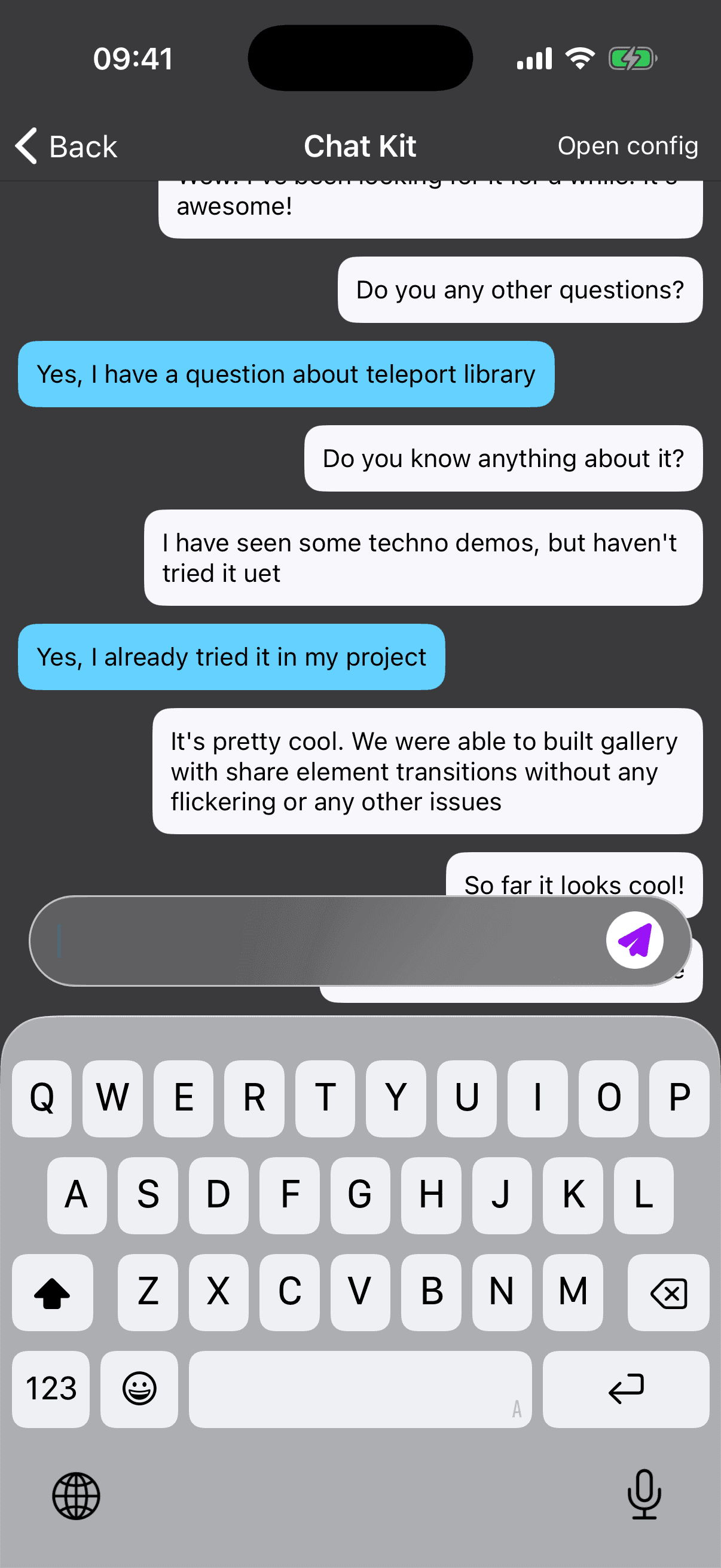 |
| By default keyboard is transparent, messages behind the keyboard are visible (Messages app style) | Non-transparent keyboard, messages behind the keyboard are hidden (Instagram app style) |
You can achieve this with KeyboardEffects. Just render an opaque view — colored to match your chat background — behind the keyboard. The keyboard then blends with your color instead of the system material:
import { View } from "react-native";
import { KeyboardEffects } from "react-native-keyboard-controller";

function ChatScreen() {
  return (
    <>
      <View style={{ flex: 1, backgroundColor: "#0A0A0A" }}>
        {/* ...KeyboardChatScrollView + composer... */}
      </View>
      <KeyboardEffects>
        <View style={{ flex: 1, backgroundColor: "#0A0A0A" }} />
      </KeyboardEffects>
    </>
  );
}
Because KeyboardEffects is built on KeyboardStickyView, the backdrop tracks the keyboard as it opens and closes, so the solid background stays aligned with the keys throughout the animation.
Swap the plain View for a gradient or an animated Skia canvas and you get richer effects (an Apple Intelligence / Siri-style glow).
The translucent keyboard is an iOS capability, so this technique only affects iOS. On Android the keyboard is opaque and the backdrop won't show through — the rest of your chat layout keeps working unchanged.
Using with virtualized lists
For production chat apps you'll likely use a virtualized list (FlatList, FlashList, or LegendList) instead of a plain ScrollView. All of these accept a custom scroll component, making integration straightforward.
Creating a scroll wrapper
Create a wrapper that passes KeyboardChatScrollView props down:
import React, { forwardRef } from "react";
import {
  KeyboardChatScrollView,
  type KeyboardChatScrollViewRef,
} from "react-native-keyboard-controller";
import { useSafeAreaInsets } from "react-native-safe-area-context";

import type { ScrollViewProps } from "react-native";
import type { KeyboardChatScrollViewProps } from "react-native-keyboard-controller";

const BOTTOM_OFFSET = 8; // distance from safe area to input

const VirtualizedListScrollView = forwardRef<
  KeyboardChatScrollViewRef,
  ScrollViewProps & KeyboardChatScrollViewProps
>((props, ref) => {
  const { bottom } = useSafeAreaInsets();

  return (
    <KeyboardChatScrollView
      ref={ref}
      automaticallyAdjustContentInsets={false}
      contentInsetAdjustmentBehavior="never"
      keyboardDismissMode="interactive"
      offset={bottom - BOTTOM_OFFSET}
      {...props}
    />
  );
});

export default VirtualizedListScrollView;
Always set automaticallyAdjustContentInsets={false} and contentInsetAdjustmentBehavior="never" when using KeyboardChatScrollView inside virtualized lists. This prevents iOS from applying its own content inset adjustments, which would conflict with the component's inset management.
Plugging into FlashList
FlashList accepts renderScrollComponent directly as a component reference:
import { FlashList } from "@shopify/flash-list";

<FlashList
  data={messages}
  inverted
  keyExtractor={(item) => item.id}
  renderItem={({ item }) => <Message {...item} />}
  renderScrollComponent={VirtualizedListScrollView}
/>;
Plugging into FlatList / LegendList
FlatList and LegendList require a stable function reference — wrap the component in useCallback:
import { useCallback } from "react";
import { FlatList, type ScrollViewProps } from "react-native";

const renderScrollComponent = useCallback(
  (props: ScrollViewProps) => <VirtualizedListScrollView {...props} />,
  [],
);

<FlatList
  data={messages}
  inverted
  keyExtractor={(item) => item.id}
  renderItem={({ item }) => <Message {...item} />}
  renderScrollComponent={renderScrollComponent}
/>;
Handling the inverted prop
If your list uses the inverted prop (the standard pattern for chat lists where newest messages appear at the bottom), make sure to pass inverted to KeyboardChatScrollView as well:
const VirtualizedListScrollView = forwardRef<
  Ref,
  ScrollViewProps & KeyboardChatScrollViewProps
>(({ inverted, ...props }, ref) => {
  return (
    <KeyboardChatScrollView
      ref={ref}
      inverted={inverted}
      {...props}
    />
  );
});
Complete example
Here is a complete chat screen that ties together all the pieces — KeyboardChatScrollView with a FlatList, interactive dismissal, sticky input, and safe area handling:
import React, { forwardRef, useCallback, useRef, useState } from "react";
import {
  FlatList,
  StyleSheet,
  TextInput,
  TouchableOpacity,
  View,
  type LayoutChangeEvent,
  type ScrollViewProps,
} from "react-native";
import {
  KeyboardChatScrollView,
  KeyboardGestureArea,
  KeyboardStickyView,
  type KeyboardChatScrollViewRef,
} from "react-native-keyboard-controller";
import { useSharedValue, withTiming } from "react-native-reanimated";
import {
  SafeAreaView,
  useSafeAreaInsets,
} from "react-native-safe-area-context";

import type { KeyboardChatScrollViewProps } from "react-native-keyboard-controller";

const MARGIN = 8;
const INPUT_HEIGHT = 42;

// Wrapper for virtualized lists
const ChatScrollView = forwardRef<
  KeyboardChatScrollViewRef,
  ScrollViewProps & KeyboardChatScrollViewProps
>((props, ref) => {
  const { bottom } = useSafeAreaInsets();

  return (
    <KeyboardChatScrollView
      ref={ref}
      automaticallyAdjustContentInsets={false}
      contentInsetAdjustmentBehavior="never"
      keyboardDismissMode="interactive"
      offset={bottom - MARGIN}
      {...props}
    />
  );
});

function ChatScreen() {
  const textInputRef = useRef<TextInput>(null);
  const textRef = useRef("");
  const [messages, setMessages] = useState(INITIAL_MESSAGES);
  const { bottom } = useSafeAreaInsets();
  const extraContentPadding = useSharedValue(0);

  const renderScrollComponent = useCallback(
    (props: ScrollViewProps) => (
      <ChatScrollView {...props} extraContentPadding={extraContentPadding} />
    ),
    [extraContentPadding],
  );

  const onSend = useCallback(() => {
    const text = textRef.current.trim();
    if (!text) return;

    setMessages((prev) => [...prev, { id: String(Date.now()), text }]);
    textInputRef.current?.clear();
    textRef.current = "";
  }, []);

  const onInputLayout = useCallback(
    (e: LayoutChangeEvent) => {
      extraContentPadding.value = withTiming(
        Math.max(e.nativeEvent.layout.height - INPUT_HEIGHT, 0),
        { duration: 250 },
      );
    },
    [extraContentPadding],
  );

  return (
    <SafeAreaView edges={["bottom"]} style={styles.container}>
      <KeyboardGestureArea
        interpolator="ios"
        offset={INPUT_HEIGHT}
        style={styles.container}
        textInputNativeID="chat-input"
      >
        <FlatList
          data={messages}
          inverted
          contentContainerStyle={{ paddingTop: INPUT_HEIGHT + MARGIN }}
          keyExtractor={(item) => item.id}
          renderItem={({ item }) => <Message {...item} />}
          renderScrollComponent={renderScrollComponent}
        />
        <KeyboardStickyView
          offset={{ opened: bottom - MARGIN }}
          style={styles.composer}
        >
          <TextInput
            ref={textInputRef}
            multiline
            nativeID="chat-input"
            placeholder="Type a message..."
            style={styles.input}
            onChangeText={(text) => (textRef.current = text)}
            onLayout={onInputLayout}
          />
          <TouchableOpacity onPress={onSend}>
            <Text>Send</Text>
          </TouchableOpacity>
        </KeyboardStickyView>
      </KeyboardGestureArea>
    </SafeAreaView>
  );
}
Or play with the code in live mode directly in the browser:
API reference
For the full list of props and design principles, see the KeyboardChatScrollView API reference.
Troubleshooting
If you encounter any issues with KeyboardChatScrollView, please check the Troubleshooting section first before reporting a bug. If you're still having trouble, feel free to open an issue on GitHub.