Version 1.21 — KeyboardChatScrollView, ClippingScrollView, and layout-free keyboard animations 💬

Meet 1.21.0 — a release that's been a long time coming. It tackles one of the most persistent pain points in the React Native keyboard ecosystem: layout thrashing during keyboard animations. The solution unlocks cross-platform contentInset behavior, dramatically improves KeyboardAwareScrollView, and makes it possible to ship a fully-featured KeyboardChatScrollView in a few lines of code.
The problem with animating padding and margins
Before diving into what's new, it's worth understanding why keyboard handling in React Native has always been tricky (even with react-native-keyboard-controller).
The naive approach to pushing content above the keyboard is to animate a paddingBottom or height property to reduce the content size. The easiest way is to wrap the content in a KeyboardAvoidingView component. It works — mostly — but it comes with a hidden cost: every frame of the keyboard animation triggers a full layout pass.

React Native's layout engine has to re-measure and re-position the entire view tree on every frame. For simple screens this is imperceptible, but for complex layouts the consequences are real:
- Visual glitches: a
flex: 1container briefly collapses or shifts while the keyboard opens, because its height is recalculated every frame. - Unexpected spacing:
gapandjustifyContent: "space-between"redistribute space differently when the available height changes — which it does, continuously, during keyboard animation. - Performance: the layout engine is not free, and running it at 60 (or 120) FPS per frame adds up.
This video is captured in debug mode and intentionally choppy to show the performance impact of the
KeyboardAvoidingViewcomponent.
Can translateY save us?
So it becomes clear that we can not change layout every frame because it's very expensive. The natural next thought is to use translateY — a GPU-only transform that doesn't involve the layout engine at all. However, pure translateY introduces its own problem: the ScrollView keeps its original size and we just shift it vertically, so content near the top gets clipped and becomes unreachable:

A logical compromise is to combine both approaches: apply translateY during the keyboard animation for smooth 120 FPS movement, and resize the container only once — after the keyboard finishes appearing or just before it starts disappearing. This is exactly what KeyboardAvoidingView with behavior="translate-with-padding" does:

Better — but still not ideal. This hybrid approach has its own edge cases:
- Blank space can flash briefly when the keyboard closes and the resize hasn't caught up yet.
- If there's only a single message at the top,
translateYpushes it off-screen during the animation, and it pops back into view only after the resize lands. - There's no way to conditionally skip the translation — for example, to leave content in place when the user is already scrolled to the bottom.
Rethinking the approach
At this point the root cause becomes clear: all of these solutions try to animate the external container around the scroll view:
<KeyboardAvoidingView behavior="translate-with-padding">
  <ScrollView>{/* ... */}</ScrollView>
</KeyboardAvoidingView>
No matter how clever we get with the animation technique — padding, height, translateY, or a combination — we're still fighting the fact that the container's geometry is changing. What we really need is a fundamentally different approach:
- Avoid re-layout entirely — don't touch the container's dimensions at all.
- Conditionally reposition content — adjust scroll position instead of view position, which is a lightweight operation the scroll view already knows how to do.

The right mental model flips the problem: the keyboard should extend the scrollable area, not change the layout. Instead of shrinking the view to make room for the keyboard, we keep the view exactly the same size and tell the scroll view that there's extra space at the bottom it can scroll into.
On iOS, this is exactly what contentInset does — it adjusts the scroll boundaries without touching the layout engine. It's a native scroll property, it's virtually free, and it's exactly the primitive we need.
There's just one problem: Android doesn't have it.
Behind the scenes: ClippingScrollView
To bring contentInset-like behavior to Android, this release introduces ClippingScrollView — a new native view that acts as a polyfill for contentInset: { bottom }.
The idea follows the decorator pattern: wrap the target scroll view, obtain a reference to it as a child, and augment its behavior without modifying it from the outside.
In practice, ClippingScrollView wraps an Android ScrollView, sets clipToPadding = false, and applies a bottom padding internally. Because clipToPadding is false, the content scrolls into the padded area — visually identical to iOS contentInset — but the layout of everything outside the scroll view is completely untouched.
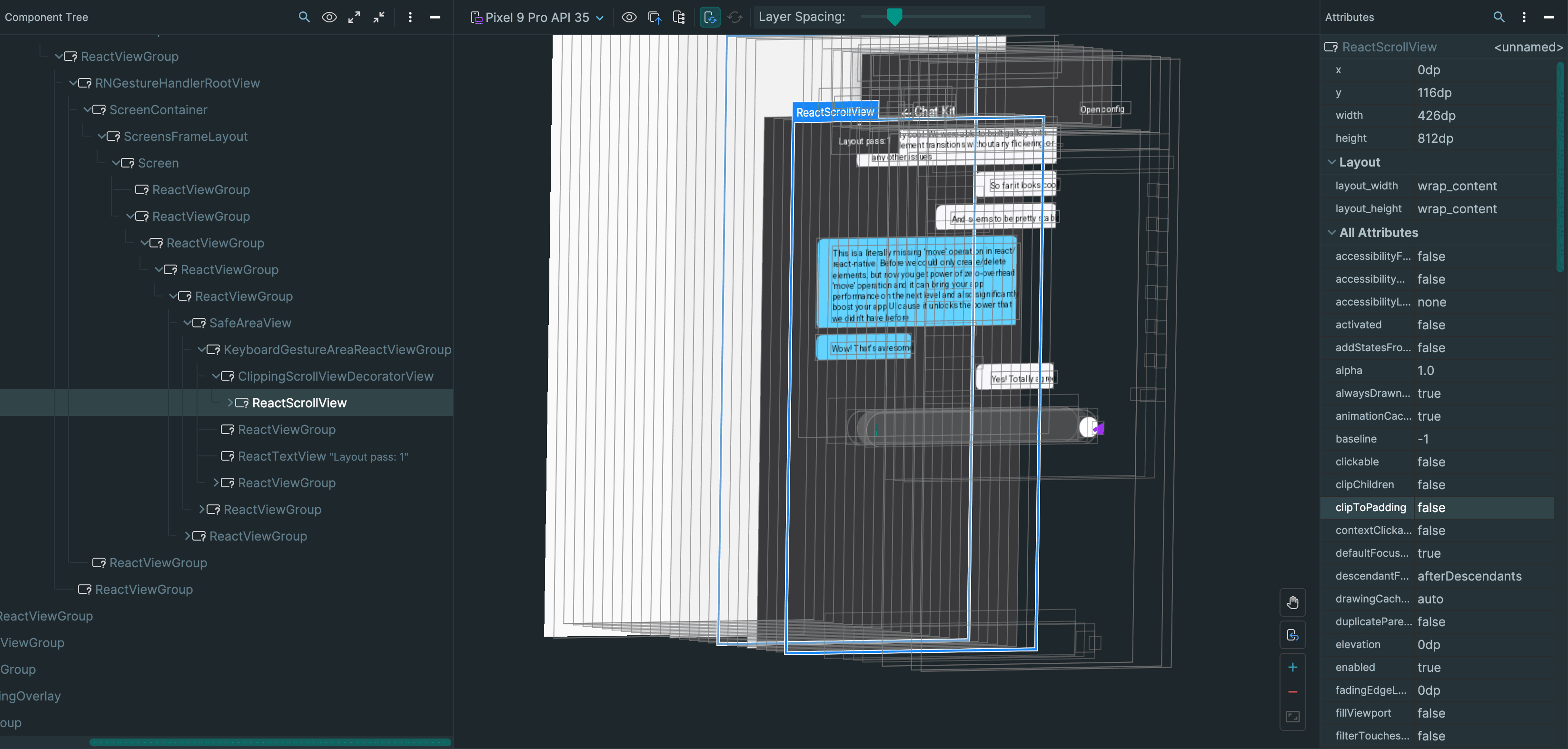
The result is a single cross-platform API that works identically on both platforms, without any conditional code at the consumer level. This component is not intended to be used directly — it's a low-level building block. But it's the foundation that makes everything else in this release possible.
This work is based on a React Native core PR. The upstream implementation had correctness issues when multiple insets were set simultaneously. Rather than wait for those to be resolved, ClippingScrollView ships directly in react-native-keyboard-controller, giving full control over the fix timeline — no dependency on a specific React Native version required.
With this cross-platform contentInset primitive in place, we can now build scroll-based keyboard components the right way. The first — and most ambitious — is KeyboardChatScrollView.
KeyboardChatScrollView
Chat UIs have unique keyboard requirements that go well beyond "push content up when keyboard appears":
- Content should lift when the keyboard opens, but only sometimes (not while the user is scrolling through history)
- Interactive keyboard dismissal (swipe-to-dismiss) must feel native and smooth
- Virtualized lists (FlatList, FlashList) must work correctly — including inverted ones
- A growing composer input must extend the scroll range without jumping the content
- Dismissing the keyboard to show an emoji picker or attachment sheet should freeze the layout
The ecosystem has never had a single component that handles all of this. Teams end up writing hundreds of lines of custom code — see Expensify's implementation for a sense of the scope.
KeyboardChatScrollView is that component. Built on top of ClippingScrollView and cross-platform contentInset, it handles all of the above out of the box — no layout hacks, no platform-specific workarounds.
Basic usage
import { KeyboardChatScrollView } from "react-native-keyboard-controller";

function ChatScreen() {
  return (
    <KeyboardChatScrollView>
      {messages.map((msg) => (
        <MessageBubble key={msg.id} message={msg} />
      ))}
    </KeyboardChatScrollView>
  );
}
That's it for the common case. Interactive keyboard dismissal, content lifting, and smooth animations work out of the box.
Virtualized lists
Wrap KeyboardChatScrollView in a scroll component and pass it to your virtualized list via renderScrollComponent:
import { FlashList } from "@shopify/flash-list";
import { KeyboardChatScrollView } from "react-native-keyboard-controller";

const renderScrollComponent = (props) => <KeyboardChatScrollView {...props} />;

return (
  <FlashList
    data={messages}
    renderItem={({ item }) => <Message message={item} />}
    estimatedItemSize={80}
    renderScrollComponent={renderScrollComponent}
  />
);
Controlling when content lifts
Different apps handle keyboard-open differently. We studied how the most popular chat apps behave and distilled those patterns into a single prop — keyboardLiftBehavior:
// Telegram: content always lifts with the keyboard
<KeyboardChatScrollView keyboardLiftBehavior="always" />

// ChatGPT: only lift if already scrolled to the bottom
<KeyboardChatScrollView keyboardLiftBehavior="whenAtEnd" />

// Claude app: lift on open, stay lifted on close
<KeyboardChatScrollView keyboardLiftBehavior="persistent" />

// Perplexity: never lift — don't interrupt reading
<KeyboardChatScrollView keyboardLiftBehavior="never" />
This prop is particularly relevant for AI chat applications, where the interaction pattern differs from traditional messaging. In apps like ChatGPT, Claude, and Perplexity, users often spend time reading long AI-generated responses and scrolling through conversation history. Interrupting that reading flow by lifting content every time the keyboard opens would be disruptive — which is why behaviors like "whenAtEnd", "persistent", and "never" exist alongside the classic "always".
Growing input with extraContentPadding
When the composer (message input) grows as the user types, the scroll range needs to extend to match. Connect it via a shared value so the update happens on the UI thread without a bridge round-trip:
import { useSharedValue } from "react-native-reanimated";

function ChatScreen() {
  const composerHeight = useSharedValue(0);

  return (
    <>
      <KeyboardChatScrollView extraContentPadding={composerHeight}>
        {/* messages */}
      </KeyboardChatScrollView>
      <KeyboardStickyView>
        <Composer onHeightChange={(h) => (composerHeight.value = h)} />
      </KeyboardStickyView>
    </>
  );
}
Reserving space with blankSpace
AI chat apps have a unique layout pattern: after the user sends a message, the app typically pushes that message to the top of the viewport and reserves empty space below it — space where the AI response will stream in. This is done by adding a large bottom inset to the scroll view.
The challenge is what happens when the keyboard opens or closes while that reserved space exists. Without special handling, the keyboard height would add to the reserved space, causing the content to jump further than expected.
blankSpace solves this by defining a minimum inset floor. The keyboard "absorbs" into it rather than stacking on top:
const blankSpace = useSharedValue(0);

// After the user sends a message, reserve space for the AI response
function onMessageSent() {
  blankSpace.value = screenHeight * 0.7;
}

// As the AI response streams in and fills the space, shrink the reservation
function onResponseGrow(responseHeight: number) {
  blankSpace.value = Math.max(0, screenHeight * 0.7 - responseHeight);
}

return (
  <KeyboardChatScrollView blankSpace={blankSpace}>
    {/* messages */}
  </KeyboardChatScrollView>
);
The effective bottom padding is computed as max(blankSpace, keyboardHeight + extraContentPadding). This means:
- If the reserved space is larger than the keyboard — content doesn't move at all when the keyboard opens. The keyboard simply occupies space that was already padded.
- If the reserved space is smaller than the keyboard — content moves only by the excess amount, not the full keyboard height.
The result is a seamless experience: the user can open and close the keyboard while an AI response is streaming, and the chat doesn't jump around.
Freezing layout during emoji/attachment pickers
When the keyboard dismisses to reveal a custom panel (emoji picker, file picker), you want to freeze the scroll layout so the content doesn't jump:
const [pickerOpen, setPickerOpen] = useState(false);

return (
  <KeyboardChatScrollView freeze={pickerOpen}>
    {/* messages */}
  </KeyboardChatScrollView>
);
Offset for non-bottom-attached inputs
If the input is not directly at the bottom of the screen (e.g., there are bottom tabs between the input and the screen edge), use offset so the keyboard only pushes content by the effective distance:
<KeyboardChatScrollView offset={bottomTabsHeight}>
  {/* messages */}
</KeyboardChatScrollView>
Improved KeyboardAwareScrollView
The same contentInset foundation that powers KeyboardChatScrollView also brought a significant internal rework to KeyboardAwareScrollView.
Previously, the component added a hidden View at the bottom of the ScrollView's content to create extra scroll space when the keyboard appeared. This worked, but it was the source of a long list of reported issues — exactly the kind of layout-related problems described at the beginning of this post:
- Layouts using
flex: 1would visually shift during keyboard animation (#168) gapandjustifyContent: "space-between"produced unexpected results (#645)
Starting from 1.21.0, KeyboardAwareScrollView uses contentInset on iOS and ClippingScrollView on Android under the hood. No hidden children. No layout modifications. The scrollable area expands to accommodate the keyboard, and everything outside that area stays exactly where it is.
This is a behavioral improvement — your existing KeyboardAwareScrollView usage needs no changes.
Opting back into layout-based spacing with mode="layout"
There is, however, one class of UI where the old behavior was actually the desired outcome: layouts that intentionally rely on flex redistribution. If you have a form where layout re-distribution helps to put form in correct position, the inset approach won't do that — it extends scroll space without touching layout.
For these cases, 1.21.0 ships a new mode prop:
<KeyboardAwareScrollView
  mode="layout"
  contentContainerStyle={{ flex: 1, justifyContent: "space-between" }}
>
  <FormFields />
  <SubmitButton />
</KeyboardAwareScrollView>
mode | How space is created | Layout reflow |
|---|---|---|
"insets" (default) | contentInset / ClippingScrollView | ❌ none |
"layout" | Spacer View appended as last child | ✅ flex redistributes |
I intentionally made "insets" default to deliver best possible performance, but if your layout depends on layout changes - you may want to use mode="layout".
Other notable changes
Beyond the headline features, this release includes a couple of smaller but important additions.
automaticOffset for KeyboardAvoidingView
A common pain point with KeyboardAvoidingView has been the keyboardVerticalOffset prop — you often need to pass the height of your navigation header, status bar, or modal offset so the component knows how much space the keyboard actually covers. Getting it wrong means content is either over-pushed or under-pushed, and the "right" value changes depending on navigation structure.
The new automaticOffset prop eliminates this guesswork. When enabled, the component uses native APIs to detect its own absolute screen position — accounting for navigation headers, modals, and any other layout offsets automatically:
<KeyboardAvoidingView behavior="padding" automaticOffset>
  {/* No need to manually calculate keyboardVerticalOffset */}
</KeyboardAvoidingView>
With automaticOffset enabled, the keyboardVerticalOffset prop becomes purely additive — use it only if you need extra spacing beyond what the component detects automatically.
KeyboardToolbar.Group
When using KeyboardToolbar with its prev/next navigation arrows, focus cycles through all TextInput fields on the current screen. This is usually what you want — but not always. If you have a bottom sheet with its own set of inputs, you probably don't want the toolbar arrows to jump between the sheet and the main screen.
KeyboardToolbar.Group solves this by defining an isolated navigation region. Inputs inside a group are only navigable within that group:
<BottomSheet>
  <KeyboardToolbar.Group>
    <TextInput placeholder="First name" />
    <TextInput placeholder="Last name" />
    <TextInput placeholder="Email" />
  </KeyboardToolbar.Group>
</BottomSheet>
When a grouped input is focused, the toolbar's prev/next buttons reflect the position within that group only — inputs outside the group are unreachable, and vice versa.
🤔 What's next?
The ClippingScrollView foundation opens doors for future improvements. The same principle — extending scroll geometry instead of modifying layout — can be applied to other scroll-related components. There's also ongoing work to improve interactive keyboard dismissal on both platforms, improve the e2e coverage for KeyboardChatScrollView, and continue refining the KeyboardAwareScrollView.
The automaticOffset approach has potential beyond KeyboardAvoidingView as well. KeyboardAwareScrollView has already started using it internally to improve scrolling precision in edge cases (such as inputs inside modals or nested navigators), and the same technique could come to KeyboardStickyView and other components that need to know their exact screen position without manual offset props.
As always, my top focus is resolving open issues and keeping the library stable for everyone:
- Issues with more 👍 reactions are prioritized first — that's how I track what matters most to the community.
- Issues labeled "sponsor 💖" receive highest priority as part of dedicated sponsor support.
Stay tuned and follow me on Twitter and GitHub for updates. Thank you for your support! 😊