Working with Modals
When using react-native-teleport with modal screens (e.g., screens presented with presentation: 'transparentModal' or presentation: 'modal') or the Modal component, you may notice that teleported components don't appear at all. This happens because modals create a separate native window hierarchy, and your PortalHost is attached to a different window.
How Modals work?
iOS
On iOS, React Native's modal implementation uses UIWindow/UITransitionView to present content. When a modal screen is shown, React Native creates a new UIWindow/UITransitionView that sits above your app's main window in the z-order. This ensures that modal content always appears on top of other app content.
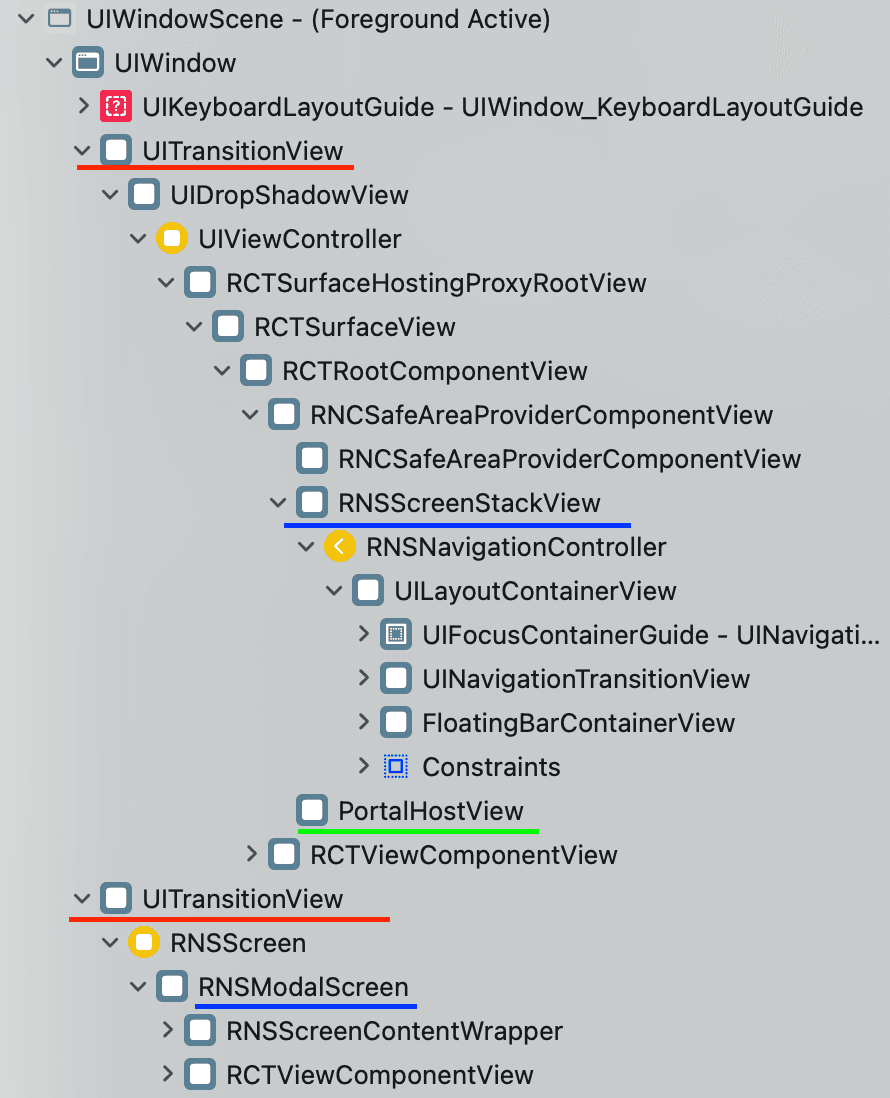
Since the PortalHost is in the main window and the Portal is trying to render from the modal window, the teleported content ends up being rendered behind the modal - invisible to the user.
Android
Android works similarly. When a modal is presented, React Native uses a Dialog or DialogFragment which creates a new window layer (Window) that floats above the main activity's content. The view hierarchy inside the dialog is separate from the main activity's view tree.
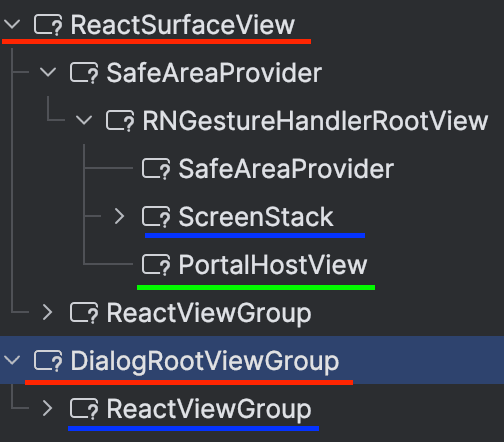
The Solution
The solution is straightforward: add a PortalHost inside your modal screen. This creates a portal destination within the modal's window hierarchy, allowing teleported content to render correctly.
import { StyleSheet, View } from "react-native";
import { PortalHost } from "react-native-teleport";

function ModalScreen() {
  return (
    <View style={styles.container}>
      {/* Your modal content */}
      <YourModalContent />

      {/* Add a PortalHost for this modal's window */}
      <PortalHost style={StyleSheet.absoluteFillObject} name="modal-overlay" />
    </View>
  );
}

const styles = StyleSheet.create({
  container: {
    flex: 1,
  },
});
Best Practices
Use Unique Host Names
When you have multiple modals or screens with their own PortalHost, use unique names to avoid conflicts:
// In ModalA
<PortalHost name="modal-a-overlay" />

// In ModalB
<PortalHost name="modal-b-overlay" />
Create a Reusable Modal Wrapper
To avoid repetition, create a reusable component that includes the PortalHost:
import { StyleSheet, View, ViewProps } from "react-native";
import { PortalHost } from "react-native-teleport";

interface ModalContainerProps extends ViewProps {
  portalHostName: string;
  children: React.ReactNode;
}

export function ModalContainer({
  portalHostName,
  children,
  style,
  ...props
}: ModalContainerProps) {
  return (
    <View style={[styles.container, style]} {...props}>
      {children}
      <PortalHost style={StyleSheet.absoluteFillObject} name={portalHostName} />
    </View>
  );
}

const styles = StyleSheet.create({
  container: {
    flex: 1,
  },
});
Usage:
import { ModalContainer } from "./components/ModalContainer";

function MyModal() {
  return (
    <ModalContainer portalHostName="my-modal-overlay">
      <Text>Modal content here</Text>
      <Portal hostName="my-modal-overlay">
        <TooltipComponent />
      </Portal>
    </ModalContainer>
  );
}
The key insight is that modals create separate native windows. Your PortalHost must be in the same window hierarchy as the Portal that targets it.