Pre-loading Heavy Components
Some components are expensive to initialize. A WebView-based rich text editor, for example, must download JavaScript from a CDN, parse it, and run initialization logic before the user can interact with it. The same applies to maps, charts, and other third-party views rendered inside WebViews.
The result is a loading spinner every time the user opens the screen - even though the component's content doesn't depend on anything screen-specific.
| Not preloaded component - need to download JS from CDN, parse it, run initialization and do a layout in the end. | Preloaded component - instant rendering |
With react-native-teleport, you can render these components offscreen at app startup and teleport them on-screen when the user needs them. Because the native view is re-parented (moved in the view hierarchy) rather than re-mounted, the component keeps its fully initialized state and appears instantly.
The pattern
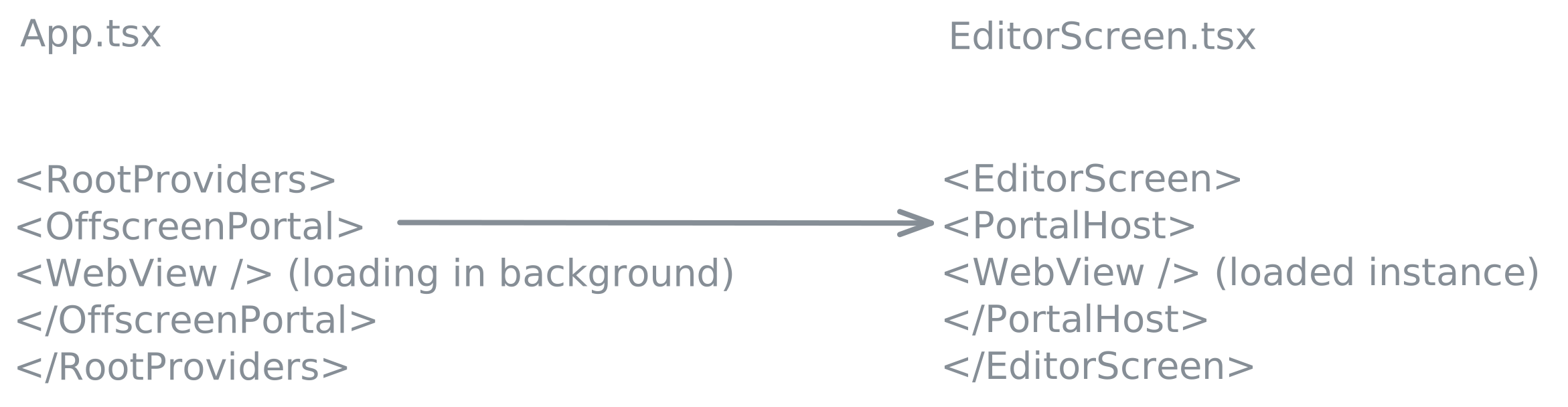
- At app startup, mount the heavy component inside a
<Portal>in a hidden offscreen container. Give the Portal a fixedhostName. - The component loads and initializes in the background while the user is on other screens. Since no matching
<PortalHost>exists yet, the Portal renders its children in place - offscreen. - When the user navigates to the target screen, mount a
<PortalHost>with the matching name. - The component teleports in - fully loaded, zero wait. When the host unmounts, the content automatically returns to the offscreen Portal.
Example: WebView rich text editor
We'll build a WebView-based editor using Quill that pre-loads at startup and appears instantly when the user opens the editor screen.
Prerequisites
Step 1: Define the editor HTML
Create an HTML string that loads Quill from a CDN and signals readiness via postMessage:
export const EDITOR_HTML = `<!DOCTYPE html>
<html>
<head>
  <meta name="viewport" content="width=device-width, initial-scale=1.0, maximum-scale=1.0">
  <link href="https://cdn.quilljs.com/1.3.7/quill.snow.css" rel="stylesheet">
  <style>
    body { margin: 0; font-family: -apple-system, BlinkMacSystemFont, sans-serif; }
    .ql-toolbar { border-left: none !important; border-right: none !important; border-top: none !important; }
    .ql-container { border: none !important; font-size: 16px; }
  </style>
</head>
<body>
  <div id="editor">
    <p>Start writing...</p>
  </div>
  <script src="https://cdn.quilljs.com/1.3.7/quill.min.js"></script>
  <script>
    var quill = new Quill('#editor', {
      theme: 'snow',
      modules: {
        toolbar: [
          [{ header: [1, 2, 3, false] }],
          ['bold', 'italic', 'underline'],
          [{ list: 'ordered' }, { list: 'bullet' }],
          ['link', 'clean']
        ]
      }
    });
    // Signal that the editor is fully ready
    window.ReactNativeWebView.postMessage(JSON.stringify({ type: 'ready' }));
  </script>
</body>
</html>`;
Step 2: Create the preloaded editor component
This component renders at the app root. It contains a Portal wrapping the WebView:
import { View, StyleSheet, Dimensions } from "react-native";
import { Portal } from "react-native-teleport";
import { WebView } from "react-native-webview";

import { EDITOR_HTML } from "./editorHtml";

const { width, height } = Dimensions.get("window");

export default function PreloadedEditor() {
  return (
    <View style={styles.offscreen}>
      <Portal hostName="editor" style={styles.portal}>
        <WebView source={{ html: EDITOR_HTML }} style={styles.webview} />
      </Portal>
    </View>
  );
}

const styles = StyleSheet.create({
  offscreen: {
    position: "absolute",
    top: -9999,
  },
  portal: {
    width: width,
    height: height,
  },
  webview: {
    flex: 1,
  },
});
How it works:
- The Portal's
hostNameis set to"editor"from the start. As long as no<PortalHost name="editor">is mounted, the Portal renders its children in place - inside the offscreen container. The WebView loads and initializes invisibly. - When a
<PortalHost name="editor">mounts on a screen, the Portal teleports the WebView to it. The native view is moved, not recreated - so the editor keeps its fully loaded state. - When the host unmounts (the user leaves the screen), the WebView teleports back to the offscreen Portal, preserving any content the user typed.
Step 3: Mount at the app root
Add <PreloadedEditor /> inside your PortalProvider so it starts loading immediately:
import { StyleSheet } from "react-native";
import { PortalProvider } from "react-native-teleport";
import PreloadedEditor from "./screens/RichTextEditor/PreloadedEditor";

export default function App() {
  return (
    <PortalProvider>
      <NavigationContainer>
        <RootStack />
      </NavigationContainer>
      <PreloadedEditor />
    </PortalProvider>
  );
}
Step 4: Build the editor screen
The screen provides a <PortalHost> as the teleport destination. No coordination is needed - simply mounting the host with the matching name pulls the preloaded WebView in:
import { View, StyleSheet } from "react-native";
import { PortalHost } from "react-native-teleport";

export default function EditorScreen() {
  return (
    <View style={styles.container}>
      <PortalHost name="editor" style={styles.editor} />
    </View>
  );
}

const styles = StyleSheet.create({
  container: { flex: 1 },
  editor: { flex: 1 },
});
That's it! When the user navigates to this screen, the editor appears instantly because it was already loaded offscreen. When the screen unmounts, the WebView teleports back to the offscreen Portal automatically.
Why this works
Traditional approach:
Navigate → Mount WebView → Download JS → Parse → Initialize → Ready
           ^^^^^^^^^^^^^^^^^^^^^^^^^^^^^^^^^^^^^^^^^^^^^^^^^^^^^^^^
                        User waits through all of this
With teleport pre-loading:
App startup → Mount WebView offscreen → Download JS → Parse → Initialize → Ready
              (happens in background while user is on other screens)

Navigate → Teleport WebView on-screen → Ready!
           ^^^^^^^^^^^^^^^^^^^^^^^^^^
             Instant - no waiting
The key insight is that react-native-teleport moves native views rather than unmounting and remounting them. The WebView's internal state - loaded scripts, DOM, scroll position, user input - all survives the teleport.
When to use this pattern
This pattern is most valuable when:
- A component has expensive initialization - WebView-based editors, maps, payment forms, or chart libraries that load JavaScript from CDNs.
- The initialization doesn't depend on screen-specific data - the component can be pre-loaded with a generic configuration.
- The user will likely visit the screen - pre-loading a component the user never sees wastes resources. Use this for screens that are part of the core flow.
Because the native view is re-parented rather than re-mounted, user input is preserved across teleports. If the user types something in the editor, navigates away, and comes back - their text is still there.
See it in action
Check out the Rich Text Editor example in the example app, which includes a side-by-side comparison of the standard vs. pre-loaded approach.